Jason Tools
Document Toolbox
Open source · no cloud · runs in your own server room

Stop uploading company documents to online PDF tools
49 tools here: self-hosted, open source, under your control

Auto-filled forms, stamps and signatures, watermarks, redaction of personal data, PDF encryption, metadata removal, hidden-content scanning, document comparison, page editing… with optional LDAP / AD authentication, single sign-on (OIDC / SAML / Kerberos), role permissions, auditing and log forwarding.
Every file is processed on your own server, and the source code is completely open.

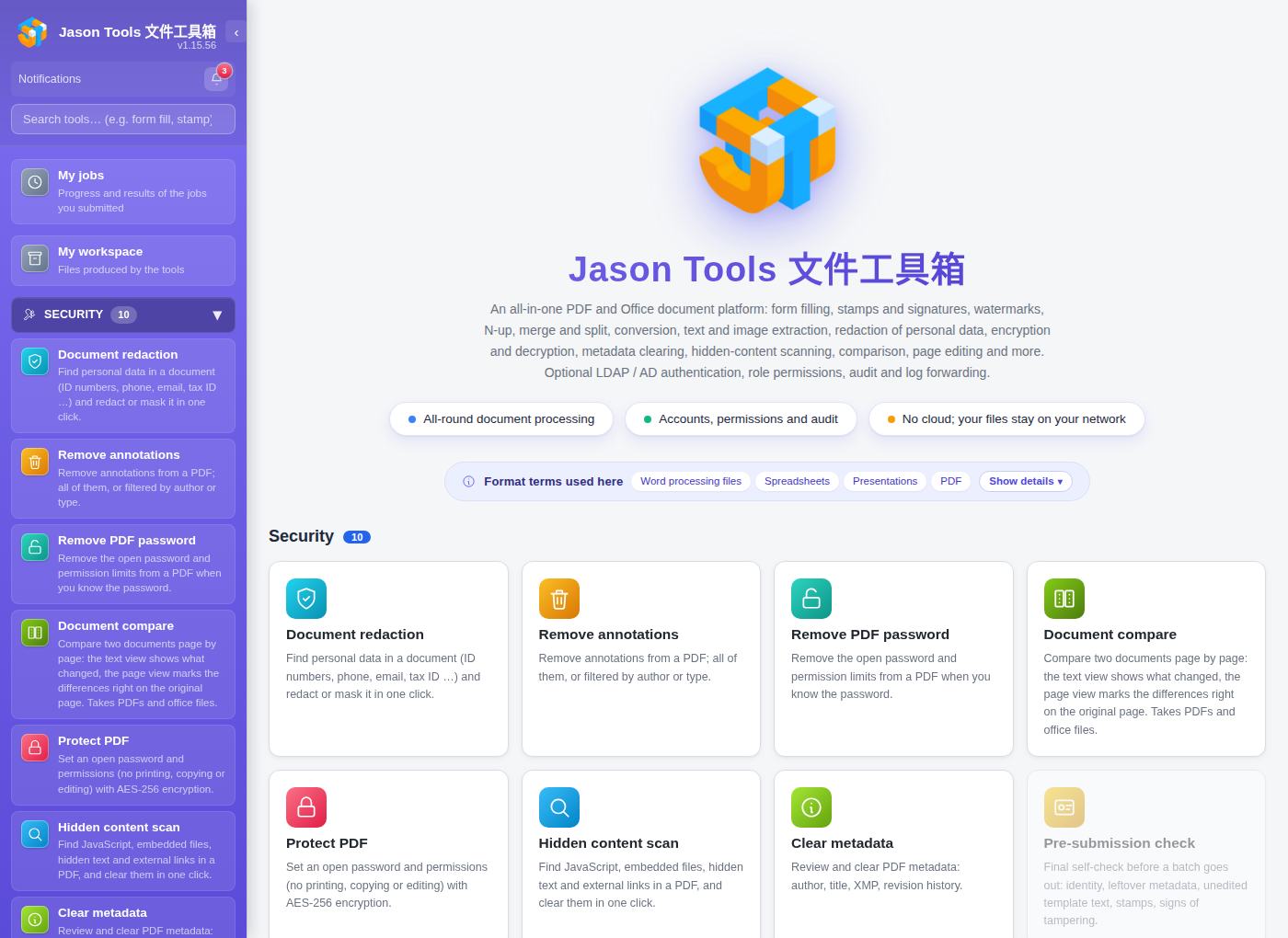
Jason Tools Document Toolbox main screen; all 49 tools
Why self-host?

Send a PDF to an online tool and the data has already left.

There are plenty of "free" PDF / image / Office tools online: form filling, stamping, merging, compressing, signing, encrypting…
Two clicks and it is done, but your file has been uploaded to somebody else's server. Contracts, HR records, finances, customer data, ID numbers, bank accounts; are you comfortable with that?

What worries people about online PDF tools
  • Files go to a third-party server and you cannot confirm when they are really deleted
  • Most do not publish their source, so you do not know what the server does with your data
  • Free tiers often come with privacy policy changes and terms that let them train AI on your files
  • Uploading ID numbers, bank accounts, customer lists or contracts = personal data law / GDPR risk
  • Your network audit sees nothing and your SIEM receives nothing, so there is no compliance trail
  • Cross-border or cross-site transfers raise data residency questions
Self-hosted and open source is the only way to be sure
  • Files never leave your server; no third-party APIs, no telemetry
  • Open source (AGPL-3.0); audit anything you like
  • Audit records are written to your own SQLite and can be forwarded to an internal SIEM in real time
  • Roles and a permission matrix: your organisation decides who may use which tool
  • Personal data law / GDPR compliance: the data stays in your own server room or network
  • One-line install, running on the Linux, macOS or Windows machines you already have; no licence fees
Core features

49 tools in 5 categories

Every tool has its own page, one click away in the sidebar. Every result can be downloaded as a PDF or an image.

Format terms: on this site, Word processing files means .docx / .odt, Spreadsheets means .xlsx / .ods, Presentations means .pptx / .odp, PDF means .pdf; and Office documents is the umbrella term for all four is the umbrella term that is what we call it when a tool accepts several formats at once.
Tools that need an Office engine are marked with a wrench icon. These tools handle Word / Excel / PowerPoint / ODF using OxOffice or LibreOffice (OxOffice first; the Taiwan-localised fork maintained by OSSII, with better CJK support). The other 28 tools only handle PDF, plain text and images and do not need an Office engine. The install script detects and installs OxOffice for you.

Forms and stamps

  • Auto-fill forms Upload a vendor form and the fields are detected and filled from your company details (Office input needs the engine)
  • Stamp and signApply a stamp, signature or logo; batches and fine positioning supported
  • WatermarkOpacity, angle, tiled or at a chosen position
  • Seam stamp Split one stamp across consecutive pages so a swapped or missing page is obvious; page span, position and angle are all configurable (office input needs the engine)

Editing

  • PDF editorAdd text, images, shapes, whiteout and annotations
  • Compress PDFThree presets, or fine-tune DPI and font subsetting
  • N-up Put 2/4/6/8/9/16 pages on one sheet
  • Merge files / split pagesEveryday PDF operations
  • Rotate / organise pages / page numbersLayout adjustments
  • Page borders Draw a border on every page: width, colour, style, rounded corners, double lines and shadow; especially handy for slides (office input needs the engine)
  • Scan cleanup Straightens documents photographed or scanned at an angle, trims dark borders and evens out the background; for phone photos it finds the four corners and corrects the perspective, reporting the correction angle and residual skew for every page. Takes PDF, images and office documents (office input needs the conversion engine)
  • Bookmarks and contents Add bookmarks (the reader's side navigation) and a clickable contents page; upload several files and they are joined with each filename as a top-level bookmark, existing bookmarks moved one level down; invaluable for tenders and annual reports (office input needs the engine)
  • Unify page size Bring mixed sizes onto one paper size (A4 / A3 / custom): scale to fit, centre without scaling, or crop to fill; mixed orientations rotate automatically and the content stays vector, so the text is still selectable (office input needs the engine)
  • Flatten annotationsBurn annotations into the page so the recipient cannot remove them; form fields stay fillable
  • Scan mergeCombine several scans: both sides of an ID, say: detecting the areas with content, keeping the original colour and composing them onto one white A4 sheet in their original positions; drag to fine-tune, and light grey backgrounds are whitened automatically

Content

  • Extract text Export TXT / Markdown / Word / ODT (Word and ODT output need the engine), with optional LLM paragraph re-flow
  • Extract imagesEmbedded images are deduplicated automatically; tick the ones you want and download a ZIP
  • PDF attachmentsExtract files embedded in a PDF (EmbeddedFiles)
  • Word count Words, characters, paragraphs and sentences, four interactive charts and CSV / JSON / Markdown export; accepts PDF, office and plain-text files (office files are converted to PDF first)
  • Meeting summary Turns a meeting transcript (.vtt / .srt / .json / .txt / .docx / .odt) into a summary, decisions, action items, risks and chapters; every entry points back to the segment it came from and who said it, and clicking it jumps there (the engine is only needed to export as PDF / Word / ODF)
  • Annotation reportExtract PDF annotations as a full list, a review report or a to-do list (CSV / JSON / Markdown), filtered by type or author
  • Sentence translation Sentence-by-sentence translation with a local LLM, source and translation side by side; paste text or upload PDF / DOCX / TXT; the target language defaults to Traditional Chinese
  • Document translation Translate a whole office document into another language, producing the same format and layout; only the text changes. Works with Word, Excel, PowerPoint and ODF, and shows a preview of the first six pages
  • OCRTurn scanned PDFs and images into selectable text with two engines (EasyOCR by default, Tesseract as a fallback); strong on Chinese, Japanese and Korean, with optional LLM typo correction. An external GPU recognition server is supported (DGX Spark / H100 / 4090 …), which is more than 10× faster
  • List toolsPaste text or upload a file (txt / csv / xlsx / docx / pdf …), one item per line: sort, deduplicate, filter, take the first or last lines, change case; steps can be combined; copy the result or download it as txt / csv / xlsx
  • e-Invoice processingScan a Taiwan e-invoice QR code to read the invoice number, date, amount and tax ID, then fill in the seller, industry and accounting category (rules plus optional LLM); expense and period checks included, with export in seven formats
  • Travel receiptsPulls a batch of Taiwan Railway, THSR and Uber ride receipts into one table — date, transport, route and fare — with configurable columns and export in seven formats for expense claims
  • Company ID lookupLook up an 8-digit tax ID, or search company, agency and school names, addresses and industries; category filters, batch lookup and CSV export included

Conversion

  • Office to PDF Batch convert Word / Excel / PowerPoint / ODF to PDF
  • Office format conversion Convert between formats of the same kind; documents, spreadsheets and presentations;.docx /.xlsx /.pptx can target a specific version
  • Document to images Every page becomes a PNG, with five DPI steps (100 for drafts up to 400 for print)
  • Images to PDFDrop in several images, reorder, rotate or drop pages, and export one PDF; page size is selectable
  • PDF to MarkdownConvert a PDF into structured Markdown, keeping headings, tables and bold; handy for LLM and RAG pipelines
  • Markdown to office document Paste or drop Markdown, apply a theme and export PDF / DOCX / ODT, with a preview of every page
  • PDF to Word Convert a PDF back into Word (.docx) or OpenDocument (.odt) with a choice of three engines: pdf2docx, our own jtdt-reform, and jtdt-layout for near 1:1 layout reproduction; restoring layout, tables and images
  • PDF to slides Convert a PDF into PowerPoint (.pptx) or an OpenDocument presentation (.odp), one page per slide, keeping the original slide size

Security

  • Pre-submission check Automatic checks before you send: page size, embedded fonts, complete fields, leftover personal data and hidden content (Office input needs the engine)
  • Document redaction Find ID numbers, phone numbers, email addresses, tax IDs, account numbers and similar fields, then redact or mask them.
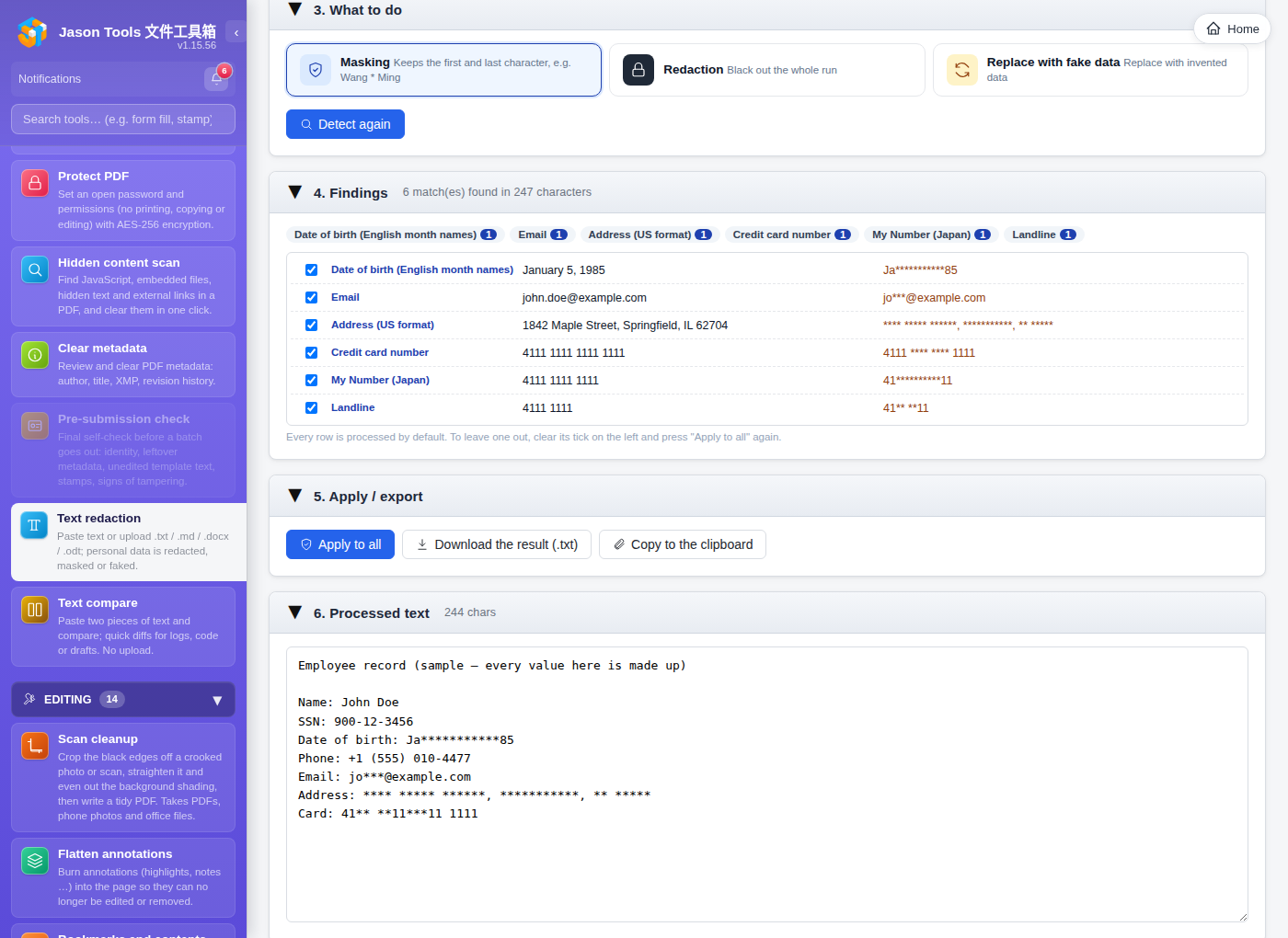
  • Text redaction The plain-text version: paste text or upload .txt / .md / .docx. It also finds IT data (IP addresses, hostnames, AD DNs, API tokens …) so logs can be cleaned before they go to an AI.
  • Protect / unlock PDFsAES-256 encryption and permission control
  • Clear metadataClear author, title, XMP and revision history in one click
  • Hidden content scanFind and clear JavaScript, embedded files, hidden text and external links
  • Document compare Compare two documents side by side: the text view shows what changed, the page view marks the differences on the original page; PDF / Word / Excel / PowerPoint / ODF (office files are converted to PDF first)
  • Text comparePaste two pieces of text and compare them instantly: no upload, quick diffs for logs, code and drafts
  • Remove annotationsDelete PDF annotations; all of them, or filtered by author or type

Teams and organisations

  • Multiple authentication realmsLocal / LDAP / AD; the same username can belong to different realms (username@realm
  • Roles and permission matrix (RBAC)6 built-in roles plus your own, for users, groups and OUs
  • Audit log and log forwardingsyslog / CEF / GELF, ready for a SIEM
  • Company logo and titleReplace the logo and title with your own, on the login page and in the sidebar alike
  • API tokens · font management · file retentionA complete admin interface
New in v1.11

My workspace: a scratch area shared across tools

Keep any PDF or PNG a tool produces on the server in one click, visible only to your account; pull it back into any tool's upload area without hunting for the file or uploading it again. Administrators can turn the feature on or off and set quotas and retention centrally.

Save to workspace

The PDF / PNG output of any tool can be kept on the server with one click, isolated per account and visible only to you. You can also drag files straight into the "My workspace" page, see thumbnails on the home page, and delete in batches.

Load from workspace

Fetch a file back into any tool's upload area with one click and hand it from tool to tool (OCR → stamp → redaction …) without downloading and re-uploading the same file over and over.

Administrator control

The whole feature can be switched off (disabling hides it completely), and administrators set a per-person quota, a per-file limit and a retention period, and can clear what a user is holding. With authentication off it becomes one shared workspace for the machine.

New in v1.14

Background jobs and completion notices: submit and close the tab

Slow work: conversion, OCR, sentence translation; runs on the server, so you don't have to watch a progress bar. You are told when it finishes, and the result is kept in “My workspace”. Administrators see the whole queue and resource usage, and can adjust every concurrency limit.

29 tools run as background jobs

PDF to office document or slides, OCR, sentence-by-sentence translation, compression, merging, watermarking, stamping… you can close the tab as soon as you submit. "My jobs" shows progress, queue position and elapsed time, and a running job can be cancelled. Tools whose output is not a single file (sentence-by-sentence translation, for instance) take you back to the page you were on.

You are told when it is done

In-app notifications show an unread count; email messages carry the site logo and the tool's icon. Telegram, Slack, Teams, Discord, LINE, webhooks and two more channels are also supported (currently marked in development, not yet verified against the real services). Messages contain the tool name, the file name and the status; never the file contents.

Web responses always come first

Conversion processes run at a lower priority and are limited to a subset of the CPU cores (one is reserved for the web interface by default), so the interface stays responsive while a large file converts; the conversion itself is merely a little slower. Memory is estimated before dispatch, and if there is not enough the job waits in the queue rather than being forced through and taking the machine down; job state lives in the database, so nothing disappears when the service restarts.

Priority dispatch

An administrator can name a small number of users: senior management, or genuinely time-critical work; whose jobs go straight to the front of the queue, to be dispatched next. Running jobs are never interrupted (killing a conversion halfway only leaves a half-finished file), so the effect is "you are next" rather than "you are now"; people on the list still queue among themselves in order, and a shortage of memory still means waiting.

Administrators see everything

Every job on the site at a glance: who submitted it, which tool, which file, its queue position and how long it has run, filterable to running jobs only, and every one can be cancelled directly. Before maintenance you can pause dispatch, letting current jobs finish without starting new ones (a running conversion is a separate child process and cannot be frozen; the interface says so plainly rather than letting you believe it stopped).

Performance is visible and the limits are adjustable

Running and queued counts, Office conversion usage, CPU and memory are all on one page, and one click shows the trend over time; the memory figure is measured from the child processes (soffice is what actually uses it). All five concurrency limits are adjustable, and however large a number you type, the real available memory still caps it.

New in v1.14

AD / LDAP: a directory integration that holds up, and that you can manage

Connecting is only the start. What actually goes wrong is this: the primary DC restarts, permissions hang off a primary group and never take effect, leavers stay in the system, accounts get reused by someone else. This round covers all of it.

Failover across several domain controllers

The server field accepts several hosts (separated by commas or newlines), tried in order; when the primary DC is under maintenance or restarting, sign-in moves to the next one instead of locking the whole company out. Connections and queries both have timeouts, so an unreachable DC returns a clear message within seconds rather than leaving people to wonder whether the system is down. A DC that comes back is returned to the rotation automatically.

AD primary groups count too

In AD, the primary group (primaryGroupID) does not appear in memberOf: the classic trap in AD integration: a company makes a department the primary group, grants permissions to it, and not one member gets them, with no clue why on the user's "Member Of" tab. The primary group is now included when permissions are resolved. OpenLDAP has no such concept and is unaffected.

Leavers and disabled accounts are visible

Directory synchronisation used to be additive only: after someone was disabled or deleted in AD, their account here, their role assignments and their group memberships all remained, and "who is still in this system" had no answer. The user list now has "gone from the directory" and "disabled in AD" views and badges. The judgement counts only a full scan; a name-filtered sync sees part of the directory, and using it as the baseline would mark the whole organisation as departed.

Bulk disable, with a safety valve

"Gone from the directory" can be hundreds of people across a dozen pages; disable them all in one click, with a dry run first that tells you how many people will actually be affected. It can also run automatically after a sync (off by default). The safety valve is what matters: if one run would touch more than 20% of the directory accounts it aborts entirely and changes nothing; an expired service-account password or an altered search base both make "everyone has vanished", and doing nothing is the right answer then. It also disables rather than deletes: the account and its permissions are kept, so one click restores someone who comes back.

Who is signed in right now

The user list shows how many people are online (one person with three browsers counts once), and each account shows its current signed-in devices: browser and operating system, source address, last activity; which can be signed out individually or all at once, with the action recorded in the audit log. If an account may have been compromised, every device can be kicked out before the password is even changed.

Assign permissions before they ever sign in

Click any user in the directory browser to assign a role directly, without waiting for their first sign-in; a new starter can work on day one. Each row under "member of" can set that group's permissions on the spot too. Assignment used to be possible only for a whole OU, yet "only these two people in this OU are in finance" is the far more common case.

See at a glance what someone can actually use

Permissions come from four places (directly assigned roles, groups including nested parent groups, OUs, and direct tool grants), which is hard to explain when something goes wrong. Editing a user now opens an effective permissions panel: which tools this person can use, and which rule granted each one. Audit responses and handover notes can be read straight off it.

See an expiring password before it bites

For the user, an expiring password looks like "I suddenly cannot sign in", and only then do they ask an administrator. The list now marks how many days until expiry (already expired is marked separately) so you can warn people first. The date is read from the value AD works out itself, so people covered by a fine-grained password policy (PSO) or set to "password never expires" are correct; working it out from the domain-wide setting would get it wrong.

The real thing

What you see is what you get

Every tool is its own page, one click away in the sidebar. Below are real screenshots of the main ones.

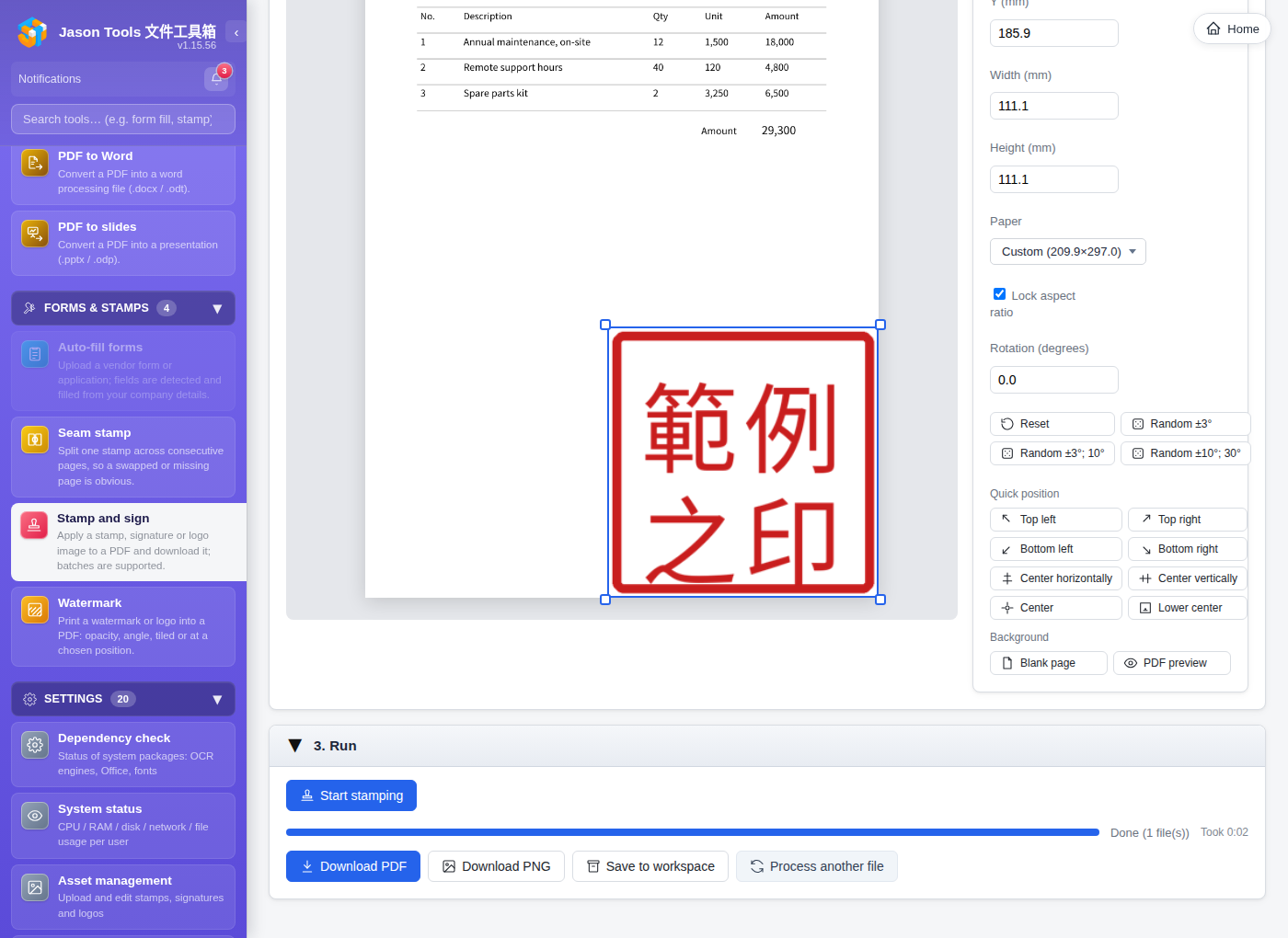
01

Stamp and sign

Drag a stamp, signature or logo onto the PDF, exactly where it will print. Edit mode drags live; composite mode previews page by page (page switcher, previous/next buttons, arrow keys). Batches supported.

drag to position page-by-page preview batch asset management
Stamp and sign; drag to position with a live preview
02

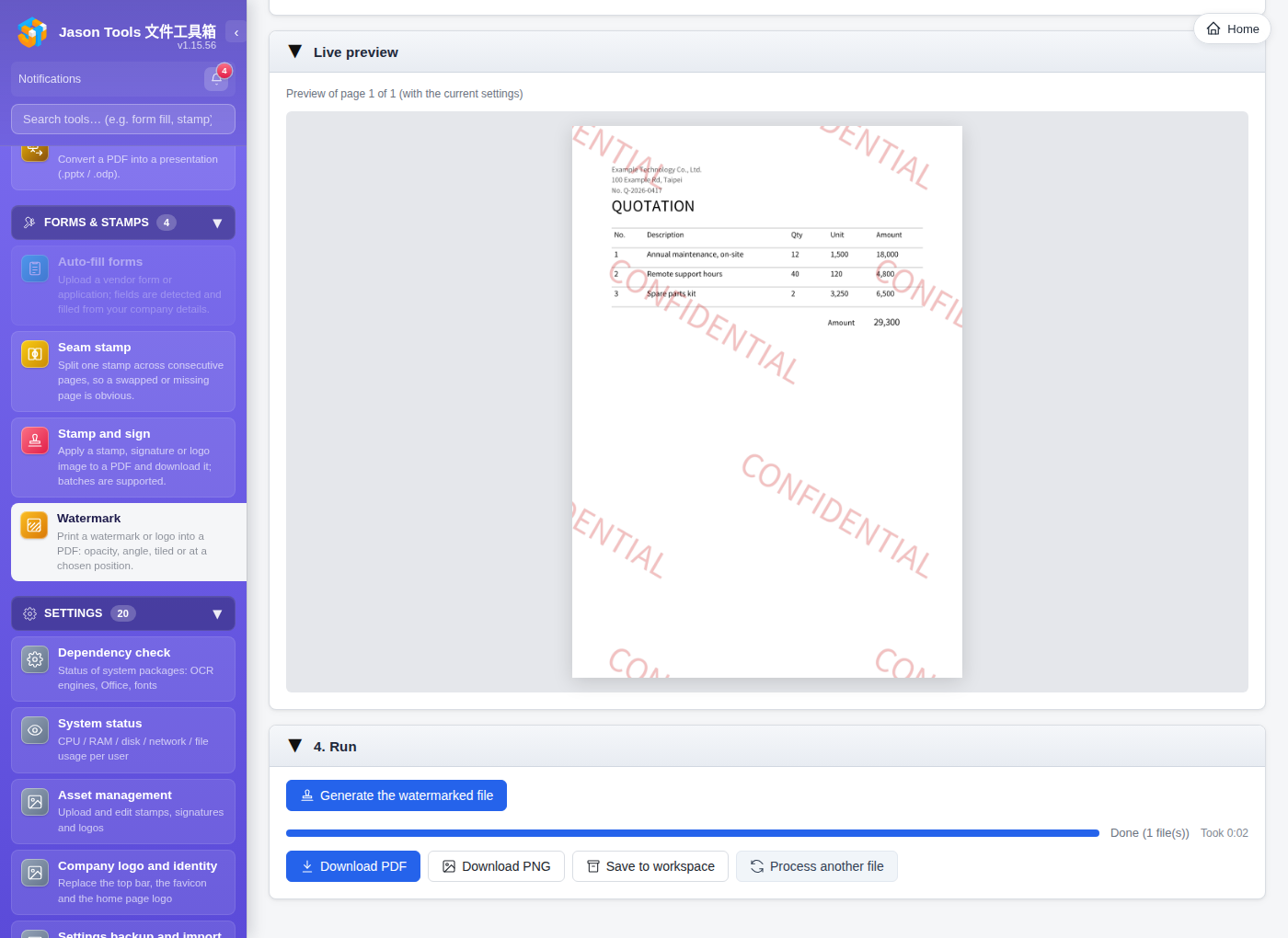
Watermark

An image or text watermark. Opacity, angle and size are all adjustable, tiled across the page or placed at a chosen spot. It is written into the page content stream, so a recipient cannot simply remove it.

image watermark text watermark tiled opacity
Watermark: opacity, angle, tiling
03

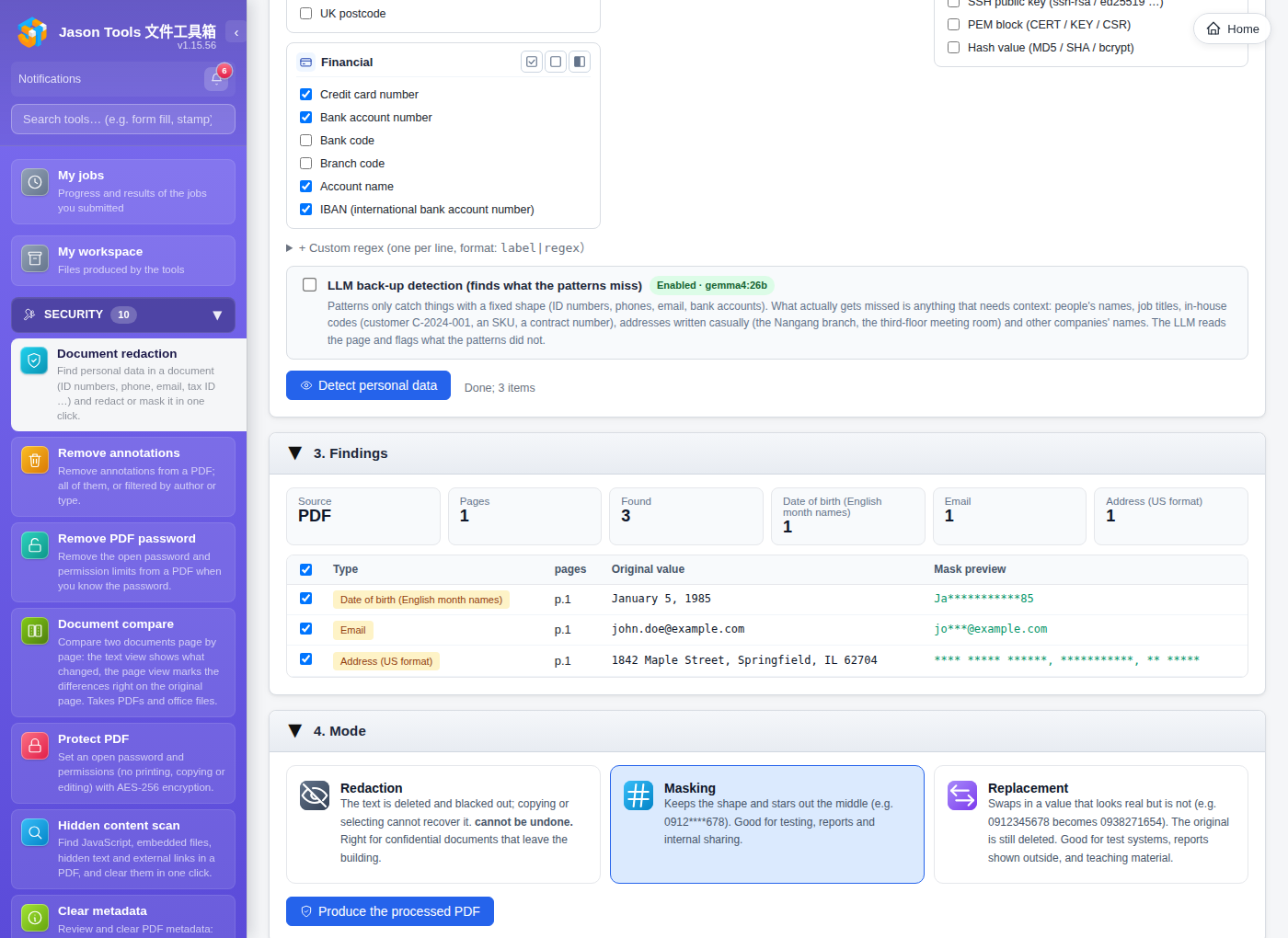
Document redaction

Detects ID numbers, mobile numbers, email addresses, tax IDs, credit cards, bank accounts, company names and personal names automatically. Two treatments are supported: redaction; genuinely removed from the PDF content stream and unrecoverable; and masking; the shape is kept but the content is hidden, which suits documents that go outside.

personal data law Redaction Masking 8+ categories
Document redaction; eight categories of sensitive data detected
04

Document redaction: preview of the result

Following on, document redaction lets you tick each detected item to keep or remove it and preview the result immediately. The output can be a real PDF (genuinely removed from the content stream, unrecoverable) or a masked version (the layout is kept, which suits documents that go outside). All of it happens on your own server; nothing sensitive goes to any cloud.

personal data law per-item control live preview never leaves the machine
Document redaction; preview of the finished result
05

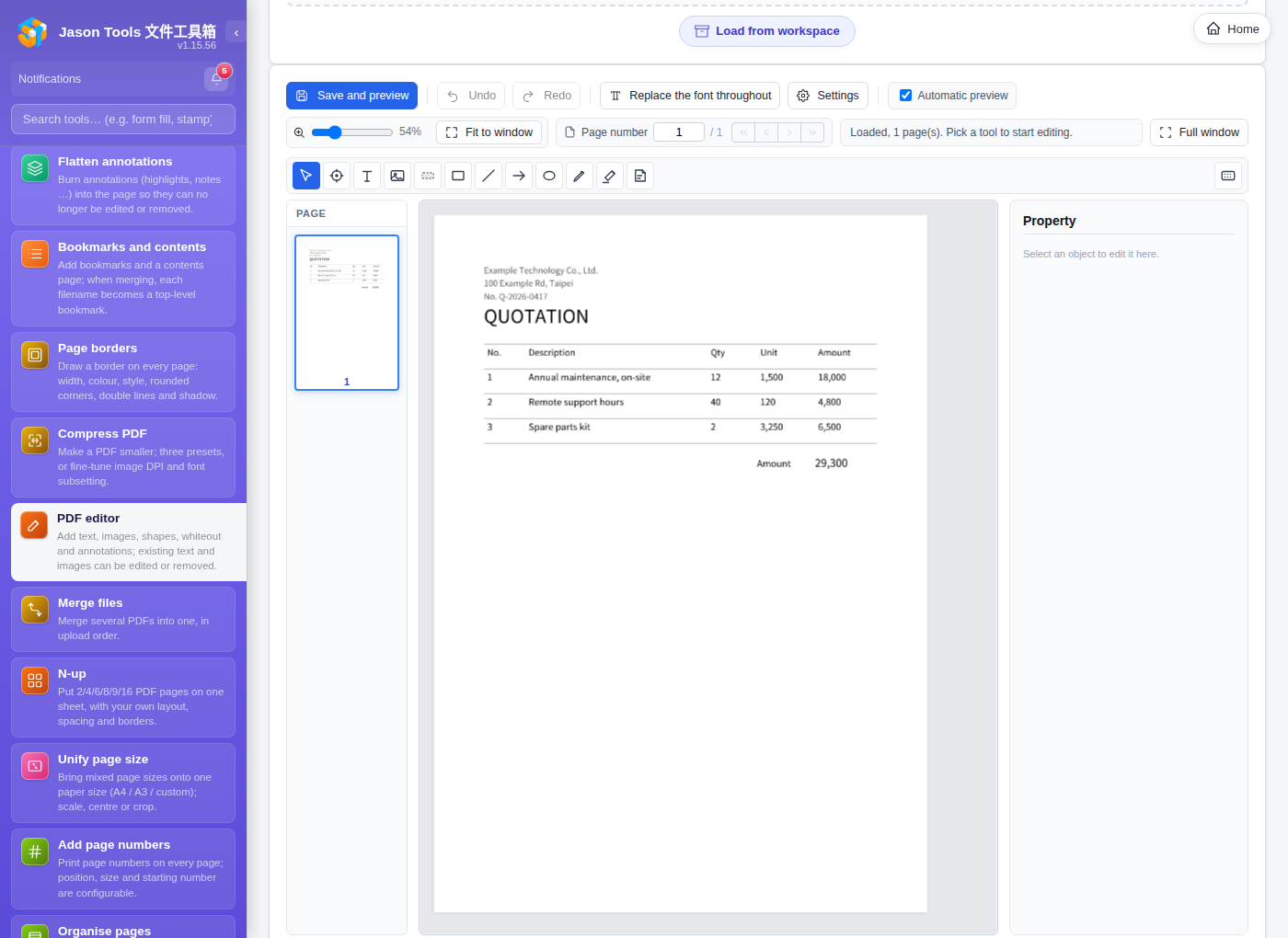
PDF editor (light, but enough)

Where it sits: light, good enough, not an Acrobat-class editor. A frame-based model inspired by Scribus: the original PDF is the background, and you overlay text, images, shapes, white-out and mark-up, or delete the text and images already on the PDF. Font management is built in (the standard 14 + Source Han Traditional Chinese + system fonts + your own uploads). More than enough for everyday stamping, patching, blanking and annotating; complex re-layout and automatic reflow across pages are out of scope.

light but sufficient overlay delete original content font management
PDF editor: overlay, edit, fonts
06

Document to images

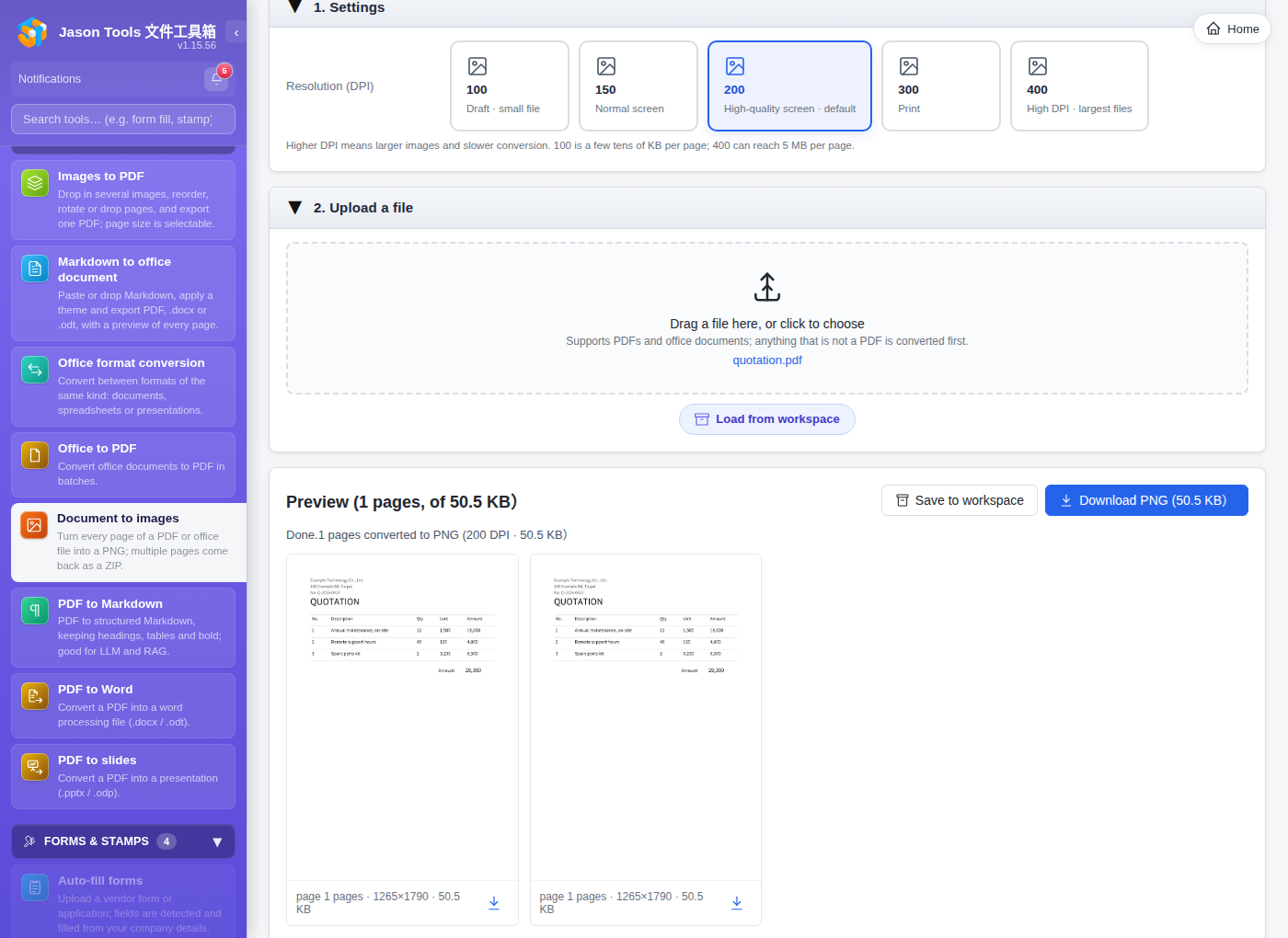
Turns every page of a PDF or Office document into a PNG. Five DPI settings (100 for drafts up to 400 for print), a real byte-level progress bar while uploading, and the size and file size of each page once done, so the estimated ZIP size is obvious at a glance. Multiple pages are packed automatically.

five DPI steps real % progress per-page size ZIP packaging
Document to images; DPI choice and a wall of page thumbnails
07

OCR (scans become selectable)

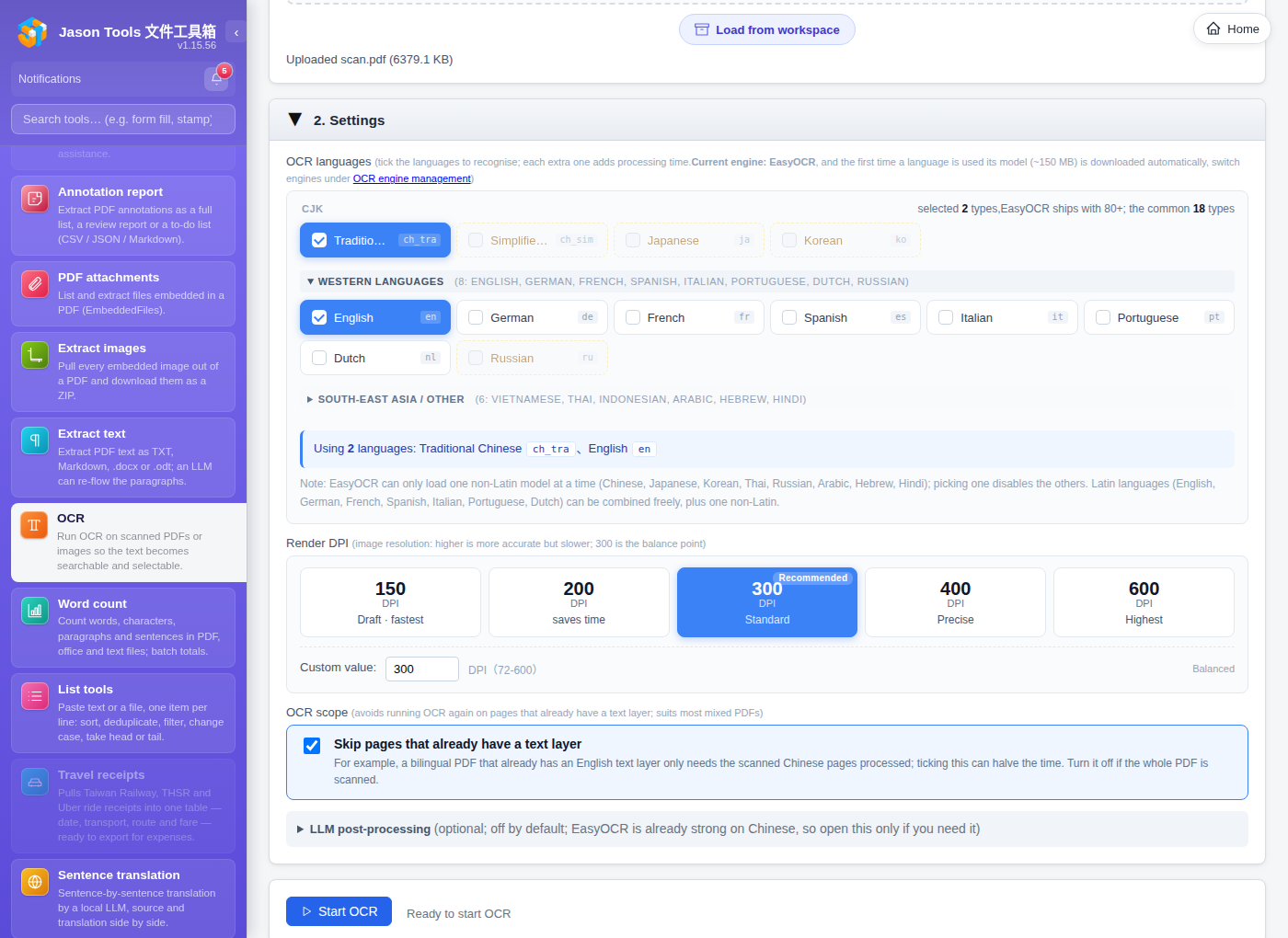
Turns a scanned PDF or image into a PDF whose text can be selected and searched; the same idea as macOS Live Text, but running in your own server room. Two engines (EasyOCR by default, Tesseract as backup) with strong Chinese, Japanese and Korean accuracy; you can select text on the page preview to check it.

External GPU recognition server: download install.sh from the admin interface and deploy it to a GPU host (DGX Spark / H100 / 4090 …), taking each page from 8-15 seconds on CPU to 0.3-0.8 seconds on GPU (more than 10×). If it is unreachable, processing falls back to the local machine.

scans become selectable EasyOCR + Tesseract strong on CJK 10×+ with an external GPU in-page PDF preview optional LLM correction
OCR; scanned PDFs and images become selectable text, previewed in place with PDF.js
08

Accounts from several realms side by side

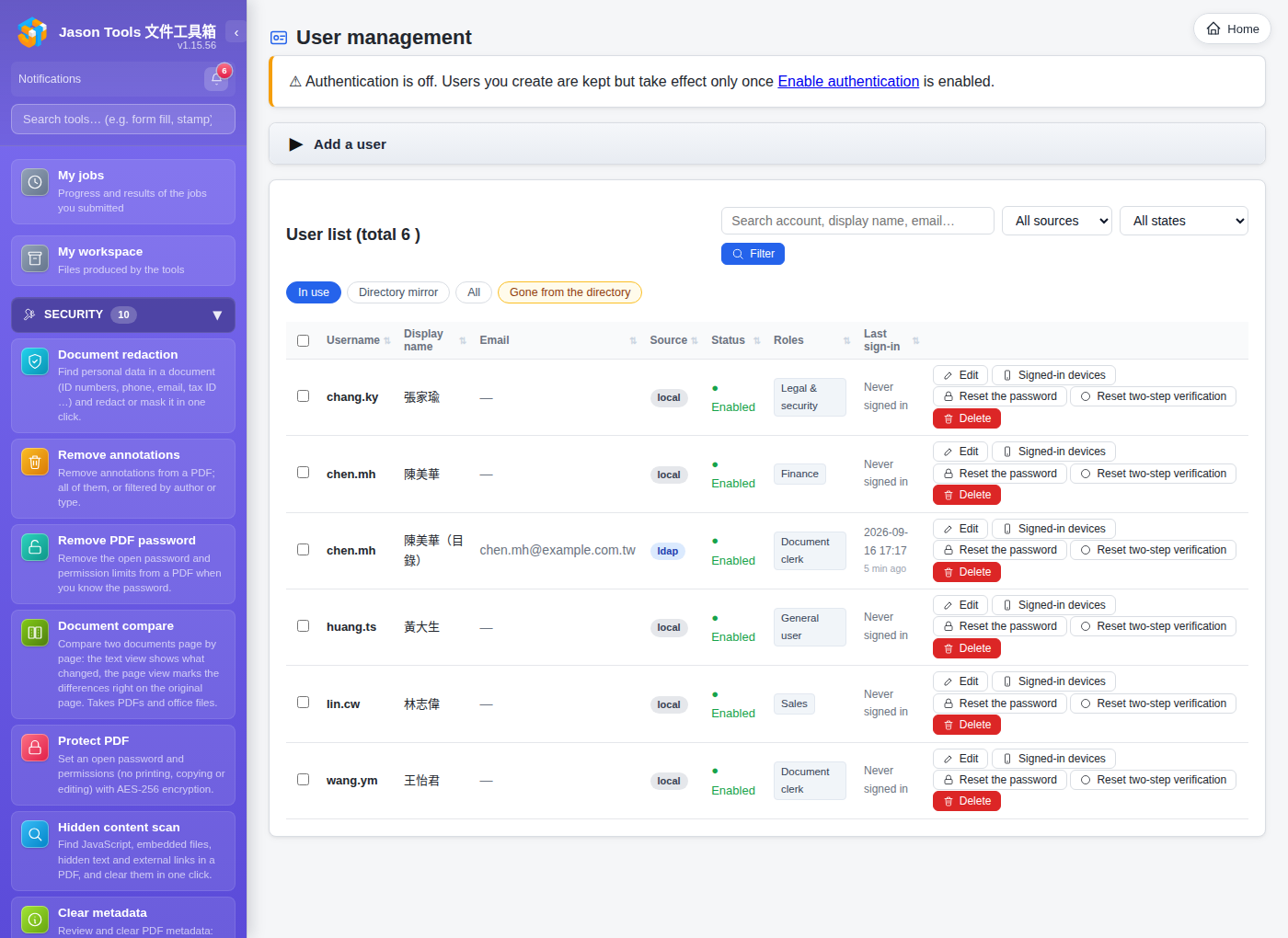
The same name can exist in different authentication sources; jason@local (for emergencies) alongside jason@ldap (for everyday sign-in), each with its own roles and permissions. Source badges are colour-coded (local grey, ldap blue, ad purple) so administrators can tell at a glance. Columns sort, and search and source filters are all there.

same name, different realms source badge sort / filter
User management; the same “jason” in both the local and ldap realms
09

Permission matrix (RBAC)

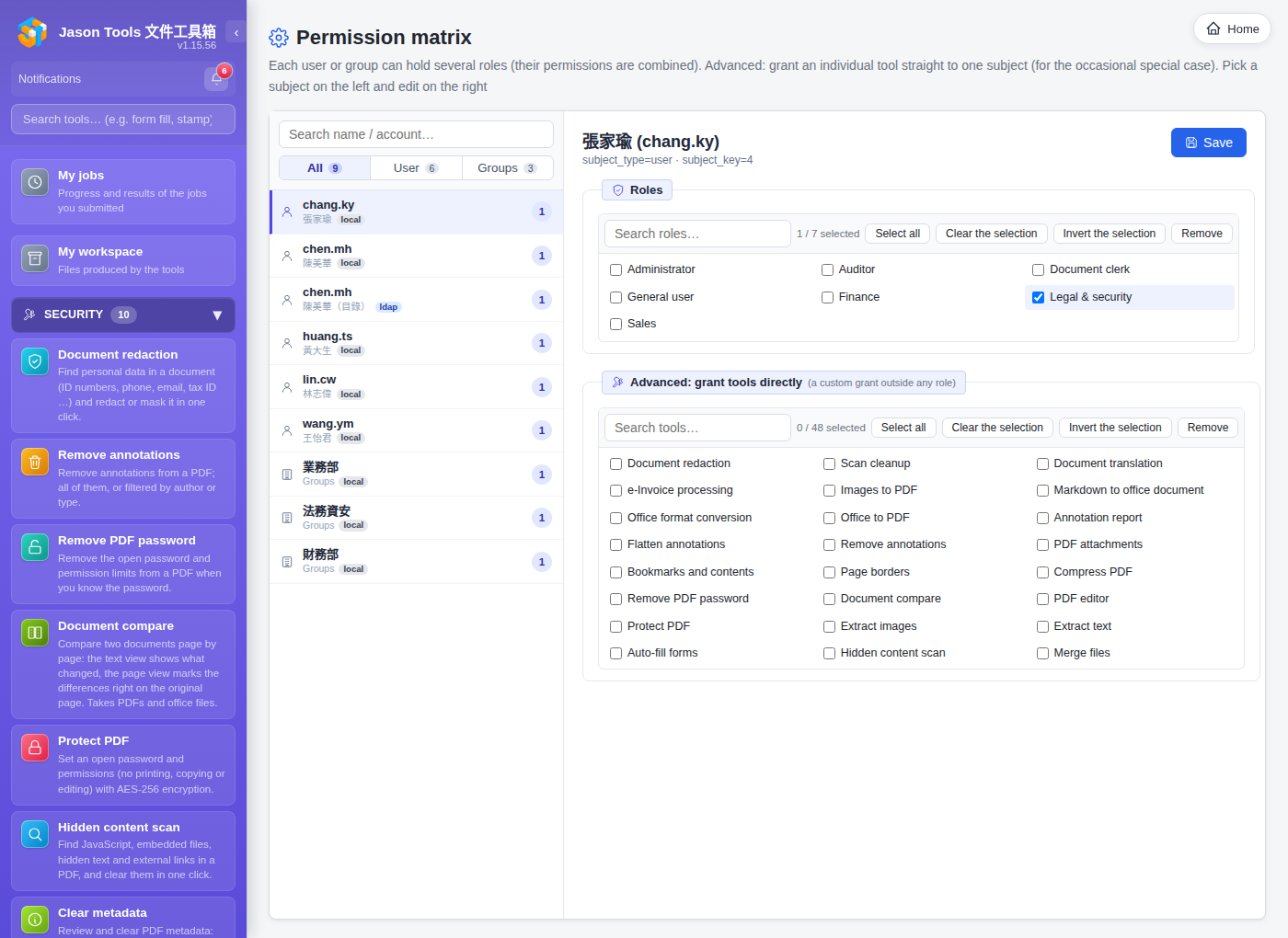
Subjects on the left (search, plus All / Users / Groups tabs), roles and tool permissions edited live on the right. Six built-in roles (administrator, general user, records, finance, sales, legal and security) plus your own, assignable to users

RBAC 6 built-in roles users / groups / OUs
Permission matrix; RBAC roles and tool permissions
10

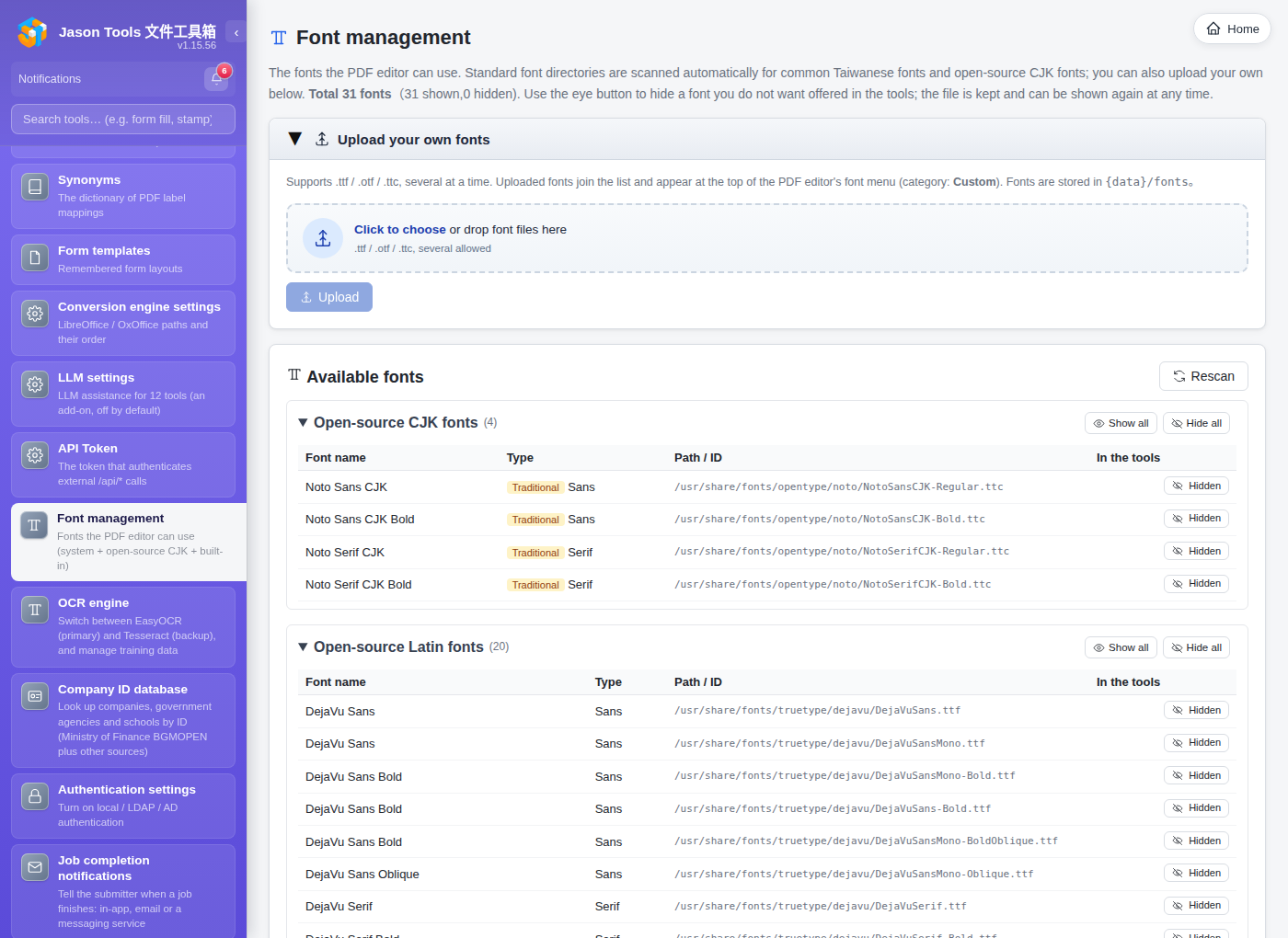
font management

Three sources of fonts in one place: the standard 14 (universally compatible in PDF), bundled CJK fonts (Source Han Sans / Serif Traditional Chinese), system fonts (scanned at runtime) and your own uploads (company .ttf / .otf). A default font can be set separately for the PDF editor, form filling and watermarks.

standard 14 Source Han TC system font scan your own uploads
Font management: standard, built-in, system and uploaded
11

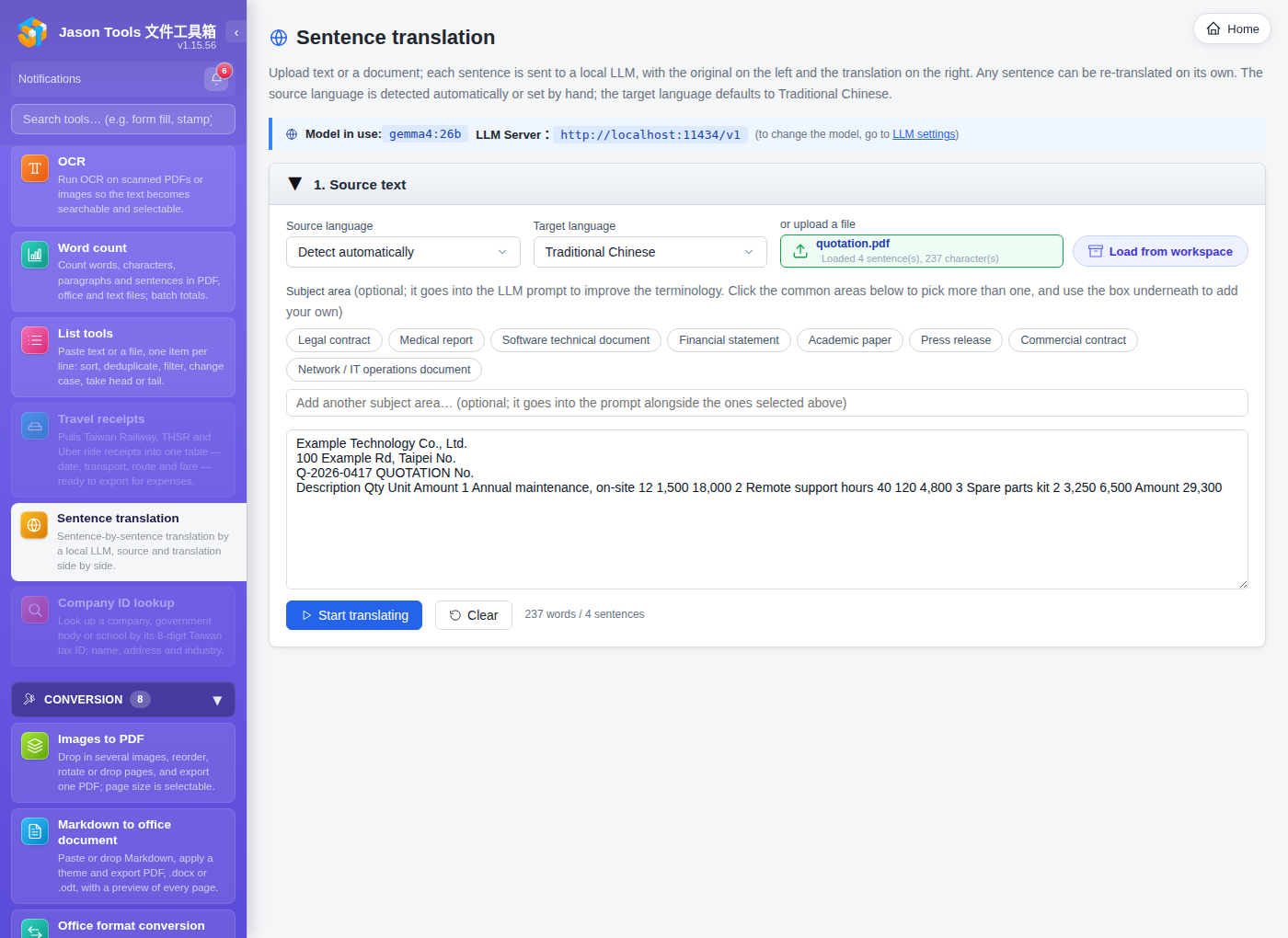
Sentence translation (local LLM)

Splits a long passage, PDF, DOCX or TXT into sentences and sends them to an LLM server on your own network (Ollama / vLLM / LM Studio …), showing the original on the left and the translation on the right, with any sentence re-translatable on its own. Nothing goes to the cloud and no document content ever leaves, which satisfies personal data law, trade secrets and customer NDAs. Parallel translation (4 at a time by default) makes batches 4-8× faster; every cell has a small copy button, rows highlight on hover, and the header shows the source and target languages and the character count.

local LLM source and translation side by side parallel translation re-translate a sentence PDF / DOCX / TXT
Sentence translation; side by side with a local LLM, contents never leave
12

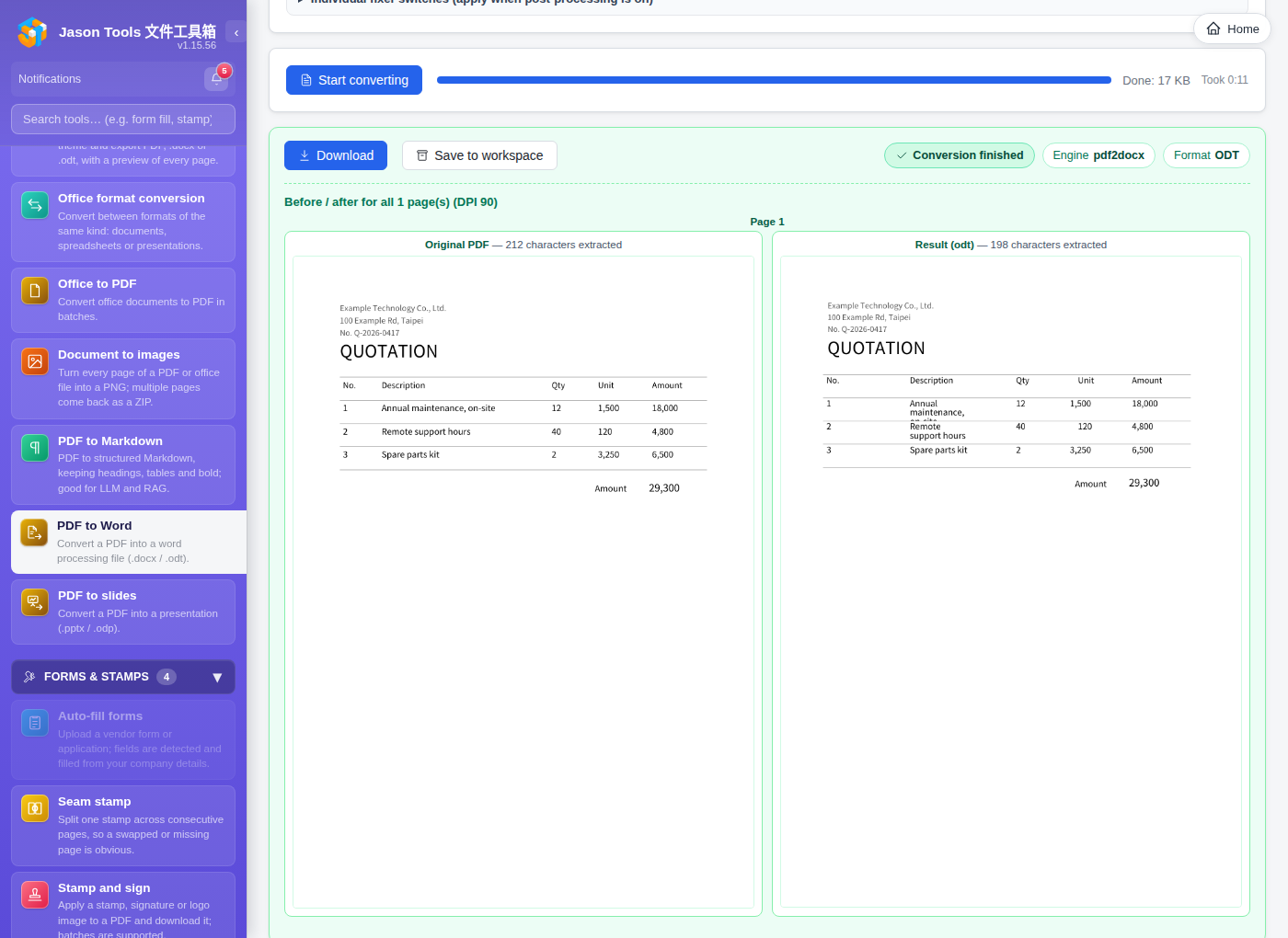
PDF to Word

Turns a PDF back into Word (.docx) or OpenDocument (.odt), with intelligent correction of fonts, paragraphs and tables. Three engines to choose from: pdf2docx (the classic, stable, widely compatible and fast), our own jtdt-reform (rebuilds flowing, editable body text from the real layout coordinates using geometric rules), and our own jtdt-layout (the most faithful to the original: each page's content goes into page-anchored text boxes at its original coordinates, keeping positions, images and borders almost 1:1: the closest match for forms, multi-column pages and bordered tables; by nature it is floating text boxes, not flowing text). Compare the result page by page before downloading.

Word / ODT three engines layout reproduction before and after
PDF to Word; three engines (pdf2docx / jtdt-reform / jtdt-layout) with a page-by-page comparison
AI extras (optional)

13 tools support LLM AI, for better speed and quality

Point it at your own LLM (local Ollama / vLLM / LM Studio / DGX Spark all work), and these 13 tools gain smart options. The core tools do not depend on an LLM at all; without any of this they still work 100%.

text

Sentence translation

Sentences are sent to the LLM, source and translation side by side, each re-translatable on its own. A Taiwanese IT terminology list is built in, and an optional “document domain” hint (legal / medical / technical) sharpens the vocabulary.

Result: for long contracts and papers, translating sentences in parallel beats doing it by hand

text

Document translation (whole office documents)

Translates a whole Word, Excel or PowerPoint file into another language and produces a file in the same format with the same layout: only the text changes; borders, tables, headers, footers and images all stay where they are. Paragraphs are sent to the LLM as units, and the first 6 pages come back as a side-by-side preview.

Result: a translated contract or policy document straight out, with no re-layout needed

text

Extract text (paragraph re-flow)

After PyMuPDF extracts the text, each block goes to the LLM to rejoin sentences that line breaks had split. Exports TXT / Markdown / DOCX / ODT.

Result: body text chopped up by the PDF layout reads smoothly again

vision

Auto-fill forms (verification)

After filling, the LLM reviews the rendered result (PNG) field by field, spotting misplaced or truncated values and wrongly ticked checkboxes.

Result: a 30-column vendor form needs no column-by-column proofreading; just look at the ones the LLM flagged

text

Document redaction (extra detection)

Regex catches fixed formats (ID numbers, phone numbers, bank accounts, tax IDs); the LLM adds context-sensitive cases such as “customer code A-2024-0815” or “Manager Wang”.

Result: the LLM catches the non-standard formats and context-dependent fields that a regex cannot

text

Text redaction (extra detection)

The same, but for plain text: support conversations, logs, email bodies. Paste it in or upload.txt /.md.

Result: plain text gets the same regex + LLM double detection

text

Word count (summary / keywords)

After counting, the LLM can add a summary and a list of key concepts (optional, off by default).

Result: faced with an unfamiliar long document, read the LLM summary first and then decide whether to read it properly

Meeting summary

Turns a meeting transcript into a summary, decisions, action items, risks and chapters. Every entry carries a segment number; click it to jump back to that line. Minutes get used as the record of what was agreed, so a decision with no source is worse than no decision at all.

text

Annotation report (automatic grouping)

Every annotation in the PDF is pulled out and the LLM groups them by theme (text to change, formatting issues, open questions, already agreed … it decides freely).

Result: on a long document reviewed by several people, group similar suggestions in one click

text

Document compare (summary of changes)

After the line-by-line diff, the LLM adds three to five sentences explaining what changed overall (optional, off by default).

Result: after a contract, draft or specification is revised, read the LLM summary before deciding whether to go through it clause by clause

text

OCR (typo correction)

After EasyOCR or Tesseract runs, the LLM uses the surrounding context to fix common OCR mistakes. A hallucination guard is built in: corrections apply only when the word count is identical before and after, so the LLM cannot rewrite freely.

Result: cleaner OCR output from scans, ready to search or edit

text + vision

Pre-submission check (meaning + visual)

After the structural checks (page size, embedded fonts), the LLM checks the content for meaning (are required fields really filled, is the wording self-consistent) and a vision model inspects the PNG (does a stamp cover text, is the layout broken).

Result: catches the "right characters, wrong meaning" and "looks wrong" cases that regex and structural checks miss

text

e-Invoice processing (accounting category)

After scanning, invoices are sent to the LLM in batches: by seller tax ID, company name and industry: to decide the accounting category (fuel, meals, postage …). Rules run first and the LLM fills the gaps; your own rules can override both.

Result: classified automatically before filing an expense claim, with no picking of accounts by hand
Deployment options

  • Local Ollama · for individuals and small teams; a consumer GPU can run gemma3:4b
  • DGX Spark / workstation · one LLM server inside the company, running gemma4:26b (the default; both vision and text)
  • vLLM / LM Studio / jan.ai · any OpenAI-compatible backend

Off by default. Once enabled at /admin/llm-settings, SSRF protection is built in (a URL allowlist plus a blocklist of cloud metadata hosts): private LAN addresses are allowed, cloud metadata addresses are refused. See LLM.md.

Enterprise administration

More than a toolbox; a platform you can control

With authentication on, the management capabilities an organisation needs are all there (all open source, with no paid tier).

A

Multiple authentication realms

Local accounts, LDAP and Active Directory are all supported at once. The same name can exist in different realms side by side (jason@local + jason@ldap), with the source chosen from a drop-down at sign-in. The LDAP settings have "test the server connection" and "test an account sign-in" buttons to check the configuration in one click.

B

Single sign-on

OIDC and SAML, for Microsoft 365 / Entra ID, Google Workspace, Keycloak, Okta, Authentik and others. They coexist with local / LDAP / AD sign-in (the local break-glass account is kept), create an account on first sign-in, map IdP groups to roles, and support single logout (SLO).

C

Reverse Proxy SSO

Kerberos / SPNEGO: a user who has joined the AD domain and signed in to Windows is signed in automatically once the front-end Nginx has authenticated them, with no username or password to type; machines outside the domain still get the sign-in page and another method. It reuses the existing LDAP / AD lookups, roles, auditing and 2FA, and guards against forgery with a trusted reverse-proxy address plus header overwriting. See reverse_proxy_sso.md.

D

Roles and permissions

Seven built-in roles: administrator, auditor, general user, document clerk, finance, sales and legal & security. You can define your own and assign tool permissions to users, groups or OUs. An in-memory cache keeps permission lookups off the critical path.

E

Audit log

Sign-in, sign-out, lockout after failures, permission changes, setting changes and tool calls including the uploaded file name are all recorded. Writes go to SQLite (WAL) asynchronously so the service is unaffected. Records can be filtered and exported as CSV, and are kept for 90 days by default before automatic clean-up.

F

Log forwarding

Three formats are supported: syslog (RFC 5424 UDP/TCP), CEF (ArcSight) and GELF (Graylog). Several destinations run in parallel, and after 3 failed retries the event is downgraded to a local audit record. Works with Splunk, Graylog, ArcSight and other SIEM systems.

G

Upload log

A separate “upload log” page lists every file uploaded through a tool: who, when, which tool, what filename, how large, and the HTTP status. Fully traceable.

H

File retention and cleanup

Separate retention settings for form-filling, stamping and watermark history, temporary uploads, job results and audit records, with scheduled cleanup (at startup and every 6 hours). “Keep forever” (-1) is available.

I

Settings backup and import

Every administrative setting (authentication, role permissions, notifications, concurrency, retention, company details, synonyms …) can be exported as one zip and imported straight into a new machine or a rebuild. Scheduled backups (daily or weekly) can also write to a directory of your choice and rotate the old files.

Compliance and separation of duties (v1.5.0)

An auditor role and enforced 2FA: mail-archive-style compliance separation

When authentication is enabled, two built-in accounts are created; jtdt-admin and jtdt-auditor; in different roles: "the person who runs the system" and "the person who reads the records" are completely separate, as ISO 27001 and similar standards require.

Permissionjtdt-admin
System administrator
jtdt-auditor
Compliance auditor
Use any tool✓ everything
Change settings (users / roles / authentication / fonts / API tokens)
View the audit log and system status✓ read-only
See the 4 user-privacy pages
upload records / form filling / stamps and signatures / watermark history
✗ (hardened in v1.5.0)✓ read-only
Enforced 2FAoptionalrequired (cannot be disabled)
Can be deleted✗ protected by is_admin_seed✗ protected by is_audit_seed
Role or tools changeable in the permission matrix✗ locked✗ locked

Why two accounts

Compliance standards require separation of duties between "the person who runs the system" and "the person who reads the records"; an administrator should not peek at what users actually uploaded, and an auditor should not change system settings. Neither side holds complete access; that is separation of duties.

Enforced TOTP 2FA

The first time an auditor signs in they are sent to /2fa-verify to set it up automatically (a QR code is shown) → scan it with Google Authenticator, Microsoft Authenticator, Authy or 1Password → enter the 6 digits and it is done. Auditors cannot turn their own 2FA off, and administrators cannot lift the requirement for anyone in the auditor role.

Several auditors

Besides the built-in jtdt-auditor, an administrator can add as many auditors as needed with sudo jtdt audit-user create <name> (useful in larger companies where IT, legal and internal audit each review separately). Each auditor has their own 2FA.

Auditor actions are recorded too

Every auditor view writes an auditor_view audit event (path / method / IP), so an administrator can see what the auditor looked at, while the auditor cannot delete it (there is no delete endpoint in the interface; the role is read-only by design).

2FA is available to everyone

Not just auditors; any user (including LDAP / AD accounts) can turn on TOTP 2FA themselves from the “My account” dialog, and turn it off again later (except the auditor role).

Emergency recovery from the CLI

An administrator can recover offline: jtdt auth show / disable / set-local, jtdt reset-password <user>, jtdt audit-user create. A forgotten password or a wrong LDAP setting needs no reinstall and loses no data.

No cloud; your data stays with you

Every file is processed on your own server.
Run it on Linux for a whole office over the internal network, or on one machine locally; nothing is uploaded to any cloud service.

⚠ Not recommended for direct exposure to the public internet Colleagues will mostly use it for company internal and confidential documents (contracts, quotations, personal data, tax records …), and exposing it directly puts those documents and the admin interface online together; a risk of data leakage; on top of that the tool parses uploaded PDFs, Office files and images (MuPDF, LibreOffice and Pillow underneath; memory-unsafe native code, which is a high-risk attack surface)。Use it on the internal network or over VPN by preference; if business needs force exposure, that is at your own risk, and at the very least put a reverse proxy + HTTPS + authentication + Enforced 2FA + a WAF, rate limiting and continuous dependency updates in front of it.
⚠ Anything beyond local access goes through an nginx reverse proxy with HTTPS Unless it is “one person on this machine” any network, several people, other machines on the LAN, or external access put it behind an nginx (or Caddy) reverse proxy with HTTPS and never :8765 exposed directly to the network. The application binds only to 127.0.0.1:8765 (plain HTTP, no TLS); exposing that directly means sending usernames, passwords and document contents in the clear. The reverse proxy handles TLS termination, HSTS, certificates, hiding the version and security headers. Full examples (nginx / Caddy / Apache / HAProxy / the reverse proxy chapter of OPS.md
Reverse proxy + TLS (required beyond local use) The backend listens only on 127.0.0.1:8765, with nginx or Caddy providing HTTPS to the outside. The backend sets CSP, HSTS, X-Frame-Options and other security headers itself (deciding https from X-Forwarded-Proto ); on nginx add server_tokens off so the version is not disclosed; security headers only need one source
no cloud Files never leave your server: no third-party API, no external analytics, no telemetry
A separate data directory All data lives under data/ area, so it is not mixed in with the user's own files and does not roam (Windows)
Audit can be forwarded With authentication on, every sensitive action is recorded and can be sent to an internal SIEM in real time for compliance
LLM integration (still growing) Paragraph re-flow, assisted form-field recognition and more can call an LLM (Ollama or a local model); off by default, and still being extended
Open, transparent, auditable AGPL-3.0 licensed, with the source published on GitHub, so you, your customers, internal audit or a third-party security consultant can read every line; no obfuscated binaries, no closed-source components
Built to security guidance All ten items of the OWASP Top 10 (2025) have automated tests (SECURITY.md), plus CSP, scrypt password hashing, TOTP 2FA and separation of duties; GitHub Dependabot and CodeQL scan weekly for CVEs and with SAST
Deployment

One-line install on all three platforms

Administrator rights are required. The installer detects and installs OxOffice or LibreOffice, downloads a self-contained Python, registers a system service and starts it at boot.

Single-machine mode (personal)
Ready to use straight after installing authentication is off by default, so anyone can open a browser at 127.0.0.1:8765 work equally well. Ideal for a one-person desktop workflow.
Server mode (team / organisation)
Deploy to a Linux server and turn on local accounts / LDAP / AD in “authentication settings”, together with roles and the permission matrix, audit and log forwarding. Shared across the internal network, and controllable.

⚠ External access always goes through an nginx reverse proxy with HTTPS: we recommend :8765 Keep it listening only on 127.0.0.1, and let an nginx or Caddy reverse proxy provide HTTPS (TLS termination, HSTS, certificates). not directly bind 0.0.0.0 expose plain HTTP to the network (credentials in the clear). Reverse proxy configuration is in OPS.md

(if the internal network is trusted and you need to open it there temporarily, jtdt bind 0.0.0.0 updates the systemd / launchd / Windows Service configuration and restarts; to bind a specific port, for example jtdt bind 0.0.0.0:9999. On Linux and macOS prefix it with sudo, and on Windows run PowerShell as Administrator.)
Linux Ubuntu / Debian / Fedora and others
curl -fsSL https://raw.githubusercontent.com/jasoncheng7115/jt-doc-tools/main/install.sh | sudo bash
macOS 12+ (Apple Silicon)
curl -fsSL https://raw.githubusercontent.com/jasoncheng7115/jt-doc-tools/main/install.sh | sudo bash
Windows 10 / 11 (x64 / ARM64)
Download the installer Download from GitHub Releases jt-doc-tools-x.y.z-setup.exeDouble-click to install, with no need to open PowerShell and paste a command. The wizard is in Traditional Chinese and includes an uninstaller.
An older version number in the filename does not matter the installer is only a bootstrapper, and the code itself is downloaded from GitHub at install time, so you always end up on the latest version.

Or install with a single PowerShell command (run as Administrator):

$f="$env:TEMP\jtdt-install.ps1"; try { Invoke-WebRequest 'https://cdn.jsdelivr.net/gh/jasoncheng7115/jt-doc-tools@main/install.ps1' -OutFile $f -UseBasicParsing -TimeoutSec 15 -ErrorAction Stop; powershell -NoProfile -ExecutionPolicy Bypass -File $f } catch { Write-Host "[X] Could not download the install script: $($_.Exception.Message)" -ForegroundColor Red; Write-Host "Check the network (VPN? firewall? DNS?) and try again." -ForegroundColor Yellow }; Read-Host 'Press Enter to close'

Once installed, open http://127.0.0.1:8765/ in a browser and start using it.

Company network cannot reach GitHub or PyPI? Either route works: ① on a machine with internet access, build a Docker imagedocker save into a single file (about 940 MB) and carry it into the network docker load and it runs; ② with a a company PyPI proxy install as usual and point it at the proxy (updates work the same way afterwards jtdt update). The steps are in OFFLINE.md
System requirements Ubuntu 20.04+ / Debian 11+ / macOS 12+ / Windows 10 1809+ / 12 GB disk for the machine, VM or container (minimum; 20 GB+ recommended: about 2 GB for the OS, an 8 GB install peak, plus headroom; around 3 GB once installed) / RAM 2 GB (4 GB+ recommended) / x86_64 or arm64 (Apple Silicon and Windows 11 ARM are both supported). Python does not need to be installed (uv downloads a self-contained 3.12). Installation takes 5-15 minutes (PyTorch, at 700 MB, is the bulk of it; it depends on your connection).
Upgrade / remove

⚠ Installed with git before 2026-09-13? Run one line before upgrading to this version. The project's git history was rewritten (to remove a record that should never have been committed), so an older jtdt update fails at git fetch --tags (would clobber existing tag) and only reports git fetch failed. Running git -C <install dir> fetch --tags --force origin once fixes it for good (that -C is upper case; a lower-case -c is the config flag, so git never changes into that directory and answers “not a git repository”, which reads like a broken install when only one letter was mistyped). Tarball installs and the Windows installer are unaffected; fixed since v1.15.41.

Linux / macOS
sudo jtdt update
sudo jtdt uninstall
Windows (run PowerShell as Administrator)
jtdt update
jtdt uninstall
add --purge deletes the data along with it.
Reverse proxy Examples for nginx / Caddy / Apache / HAProxy / Traefik / IIS / F5 are in OPS.md, with three common pitfalls marked.
Disclaimer

Terms of use

This software is provided "AS IS", without warranty of any kind, express or implied, including but not limited to merchantability, fitness for a particular purpose and non-infringement.

  • Users assume the entire risk of using this software
  • For any direct, indirect, incidental, consequential or punitive damages caused by this software (including data loss, business interruption, loss of revenue or damage to reputation), the authors and contributors accept no liability
  • When handling personal data or sensitive business documents, users must ensure for themselves that they comply with local data protection law, company security policy and related regulations
  • The LLM / AI verification features are optional and off by default; if you enable them against an external model provider, the data transfer risk is yours
  • Output from this software (auto-filled forms, redaction, OCR, LLM proofreading) is for assistance only; final correctness is the user's to confirm, and important documents should always be checked against the original
  • This software has no affiliation with, sponsorship from or endorsement by Adobe, Microsoft, OSSII, The Document Foundation or any other third party

Continued use means you accept the above. For the full licence see GNU Affero General Public License v3.0.